To protect the safety of your health information, UTMB Health MyChart now requires two-factor authentication to access your account.
What is two-factor authentication?
Two-factor authentication is an extra layer of security used to verify the identity of a person accessing their account. Two-factor authentication for your UTMB Health MyChart account will require you to login with your username and password and then enter a single-use code that will be sent to your email address or mobile device.
How can I receive my two-factor authentication MyChart login code?
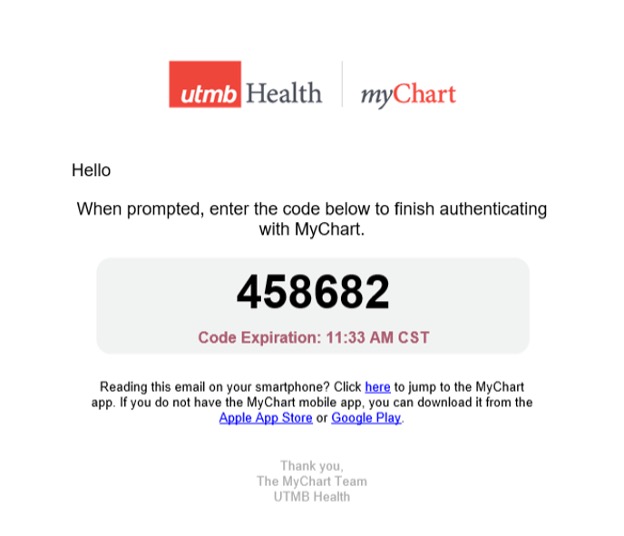
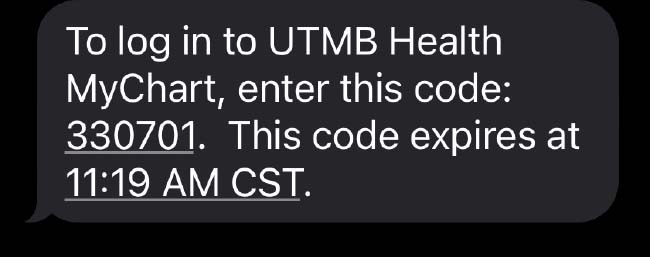
After you login to your UTMB Health MyChart account, you will be prompted to select a delivery method of email or text to receive a message from UTMB containing a six-character single use login code.
Do not leave the MyChart webpage once you have logged in and are waiting for the login code.
- If you are accessing your email in the same web browser as MyChart, we recommend using a different browser tab.
- If you are on a mobile device, we recommend switching between the MyChart app or web browser and your email while keeping both apps open.
Closing the MyChart tab or MyChart app while navigating to another webpage to retrieve your login code will cause MyChart to log out and require a new login code.
For instructions on how to switch browser tabs and to switch between apps on mobile devices, refer to the links below:
Switching Between Apps on Mobile Devices:
Switching Between Browser Tabs on Mobile Devices
How often do I need to use two-factor authentication to access MyChart?
Two-factor authentication is required upon initial login of each device after March 1, 2022. However, you may select the checkbox labeled “Skip this step next time” to remember your device for one year. During this time, you will not be required to revalidate your device with a two-factor authentication login code.

What should I do if I do not receive a two-factor authentication code?
Be patient as the email and text message delivery times can vary.
For email codes, you can also:
- Check your spam folder.
- Ensure that UTMBHealthMyChart@utmb.edu is on your allowed email list.
- Check any other email accounts that may be associated with UTMB MyChart.
- Press the “Back” option and try to receive a code via text message.
SMS/Text messages will be delivered regardless of your opt-in status to receive other messages from UTMB Health. If you are not receiving the 2FA code:
- Confirm that the number you are sending to is accurate
- If you are on a pre-paid phone, ensure you have credit to receive SMS/Text messages
- Confirm if you have requested your carriers to opt out the phone number from all SMS/Text messages from short codes
If you have completed the above steps and still need assistance, please call the 24/7 MyChart patient support team at (409) 772-4278.
Example 2FA Email:
Example 2FA Text-message:
Access your medical record 24/7
Download the App!
Apple and the Apple logo are trademarks of Apple Inc., registered in the U.S. and other countries. App Store is a service mark of Apple Inc., registered in the U.S. and other countries. Google Play and the Google Play logo are trademarks of Google LLC.