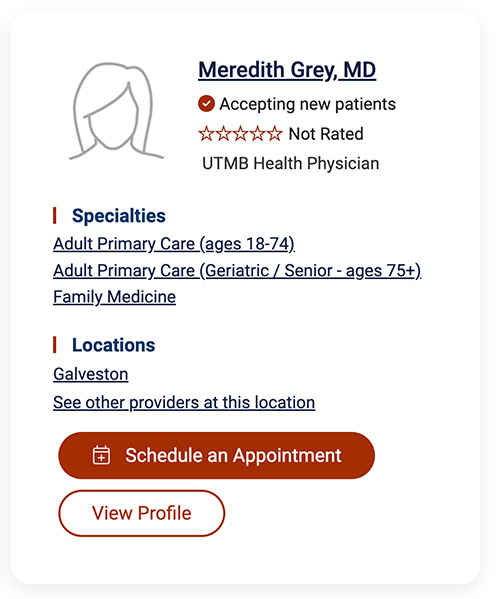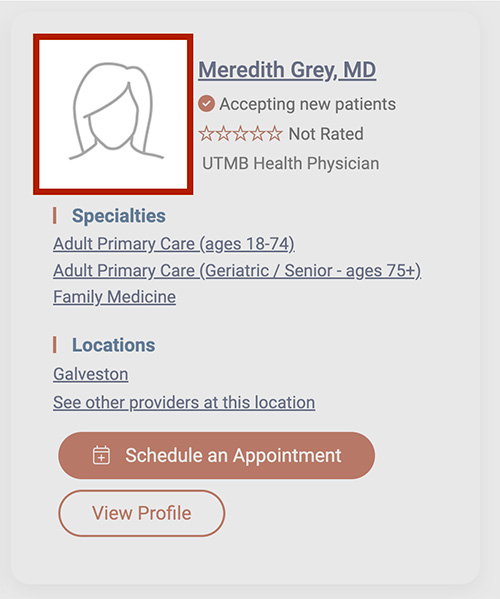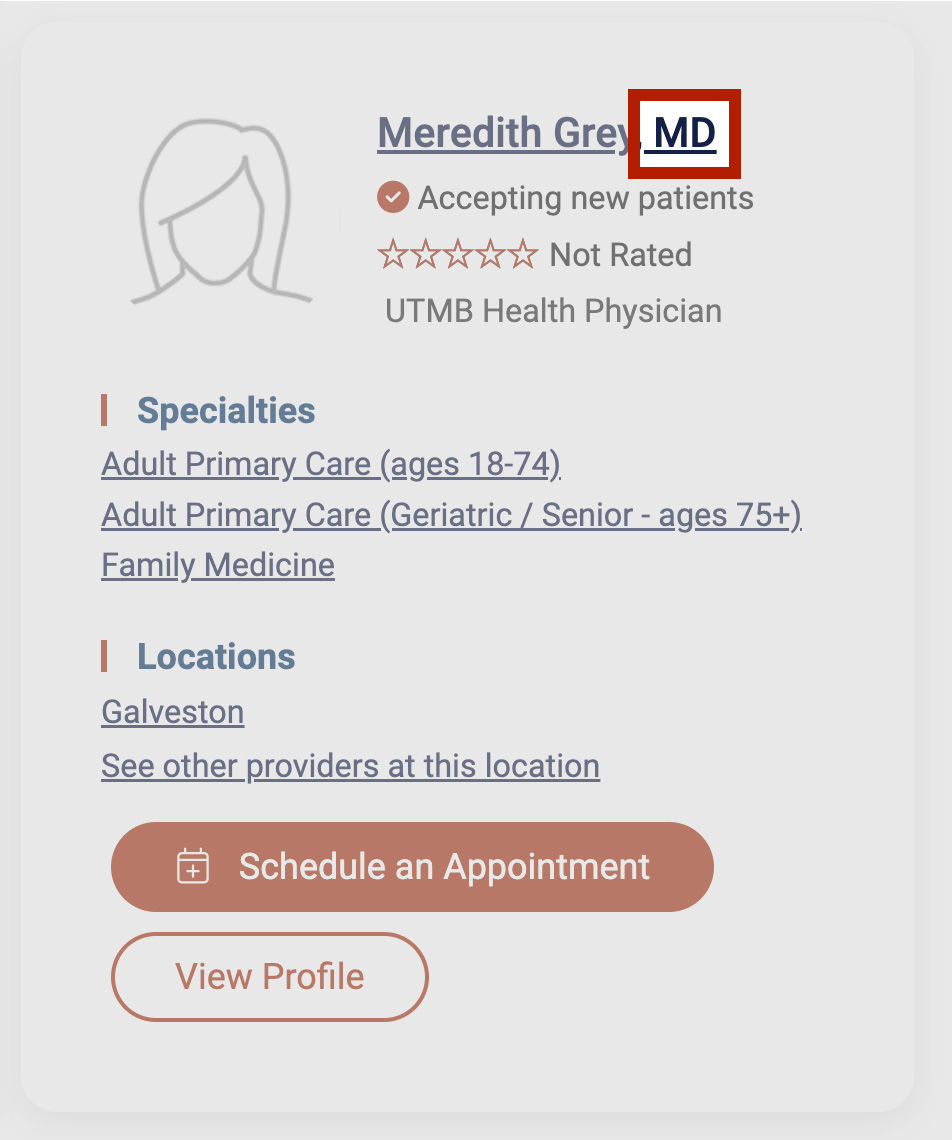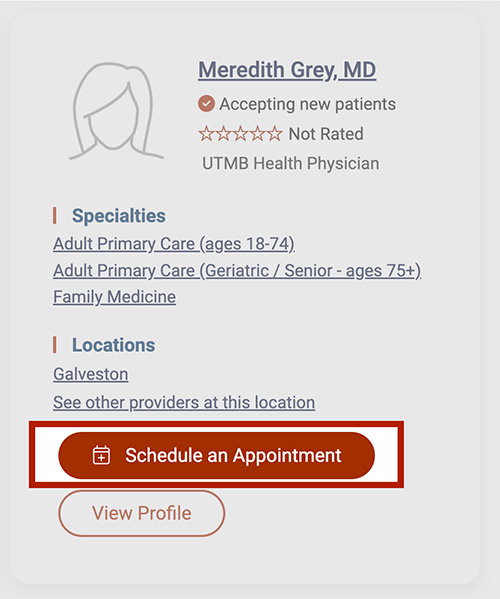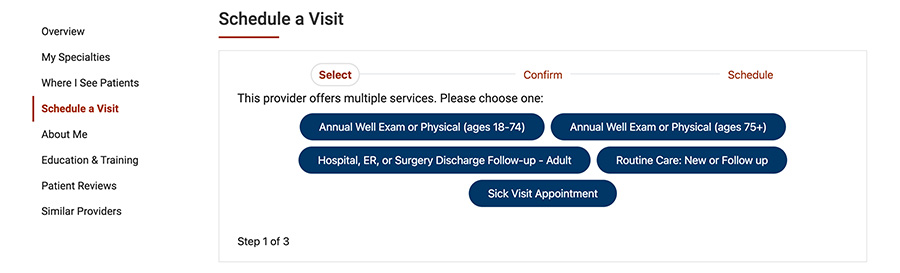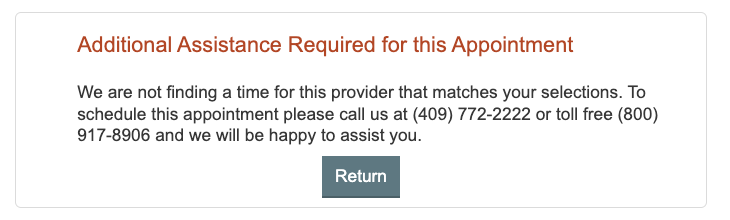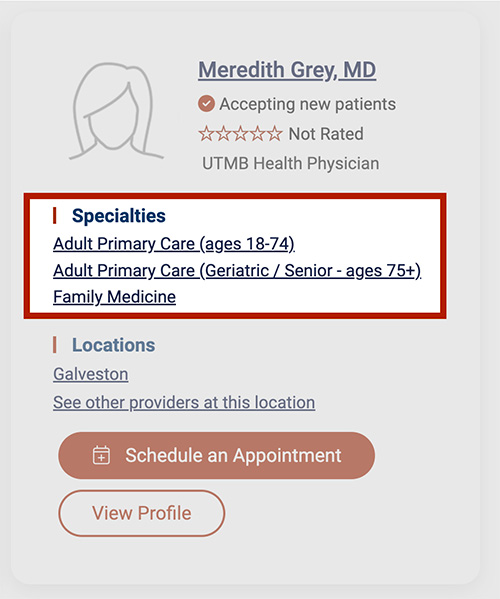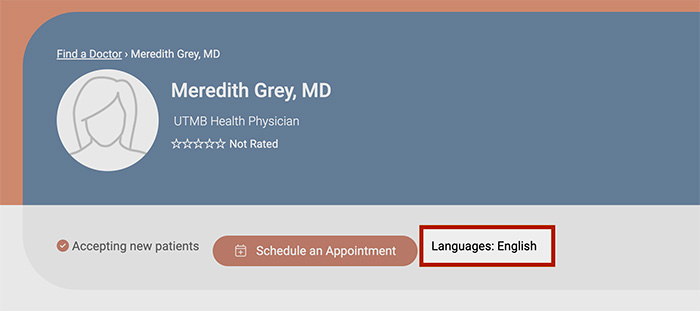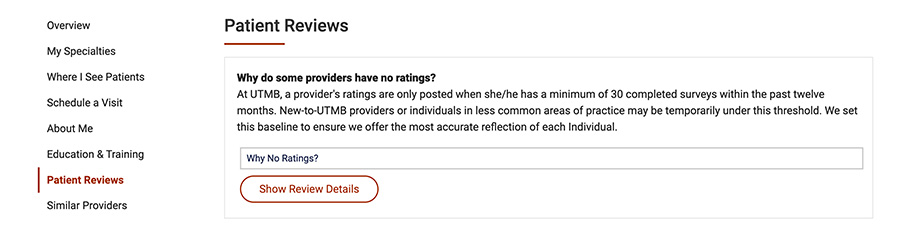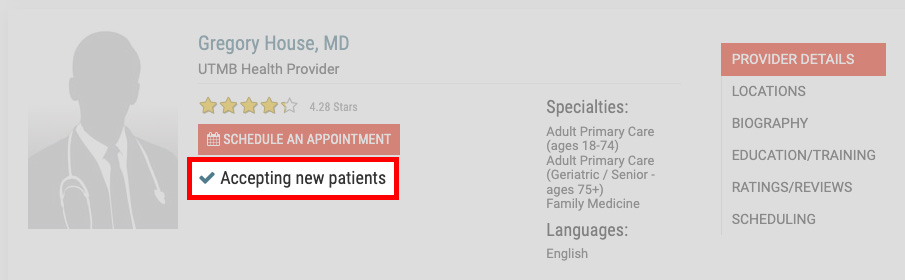
The 'Not Accepting New Patients', 'Accepting New Patients' or 'Scheduling not Available' messages may be set based on special programming or manually added. Review the options below to troubleshoot the provider:
The provider should be shown as accepting new patients and have online scheduling:
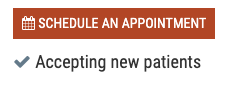
There are a series of settings that must be set up for the provider to display the "Schedule an Appointment" button and "Accepting New Patients" status in Find a Doctor:
In Epic these Criteria Must be met:
- The provider must have “Allow open scheduling” set to yes on their SER.
- To check, to submit and update, or to confirm with the MyChart team that the provider is enabled for Open Scheduling, log in to the ITS Service Desk and select the Epic MyChart Provider Messaging and Scheduling self service:
- The provider must have open times / templates with the correct visit types.
- Note: The EPIC department(s) in which the provider sees patients must also be set up for open scheduling and the visit types used must be set up in the EPIC department for open scheduling as well. This process is typically set up when the specialty
begins using open scheduling or a new department is set up.
If the above criteria are met and the patient acceptance status has not updated on Find a Doctor (allow 24 hrs to update) to "Accepting New Patients", complete the patient acceptance status question and other required fields on the Provider Update form.
After the Marketing & Communications Web Team receives the form request, they will make these manual adjustments:
- Manually set the provider to “scheduling” as opposed to “call” or "unknown".
- Manually add the different scheduling decision trees to the providers so the right options, flows and visit types show up. The form must include the specific specialties for each provider if they are incorrectly listed in Find a Doctor.
The provider should be shown as accepting new patients but is not part of a service that allows for open scheduling

Complete the patient acceptance status question and other required fields on the Provider Update form.
After the Marketing & Communications Web Team receives the form request, they will make these manual adjustments:
- Manually set the provider to “call” as opposed to "unknown".
- Manually add any custom specialties to the providers so the correct options show up. The form must include the specific specialties for each provider if they are incorrectly listed in Find a Doctor.
The provider should be shown as "Not Accepting New Patients"

If the provider is in a service which provides online scheduling, when the system cannot find slots in new visit types, it will automatically change a provider to "Not Accepting New Patients ". Templates should be adjusted to reflect the appointment availability.
If the provider is not in a service which offers online scheduling, this is a manual setting. Complete the patient acceptance status question and other required fields on the Provider Update form.
After the Marketing & Communications Web Team receives the form request, they will make these manual adjustments:
- Manually set the provider to “Not Accepting New Patients”
The provider should be shown as "Non-scheduling role" (Ex: Hospitalist, Radiologist or Anesthesiologist)

Complete the patient acceptance status question and other required fields on the Provider Update form.
After the Marketing & Communications Web Team receives the form request, they will make these manual adjustments:
- Manually set the provider to “Scheduling not Available”